How to Add and Manage Products and Services in Your Catalog
A well-organized catalog is the backbone of an efficient clinic. It's more than just a list of items; it's the central hub that ensures accurate billing, streamlined inventory management, and clear communication with tutors. Properly setting up your products and services in Veetz saves you time, reduces manual errors, and ultimately lets you focus more on patient care.
This guide will walk you through every step of creating and managing items in your catalog, explaining each field to help you make the most of this powerful feature.
Navigating to the Catalog
First, let's get to the right place:
- Click Products in the left-hand sidebar.
- In the product workspace, select Catalog.
Here, you'll see a list of all existing products and services. To create a new one, simply click the + ADD NEW button at the top.
The product workspace also holds Auxiliary tables — Categories, Product Lines, Manufacturers and Suppliers. A category is required on every catalog item, and that table starts out empty on a new clinic. Creating your categories first turns a blocked form into a smooth one.
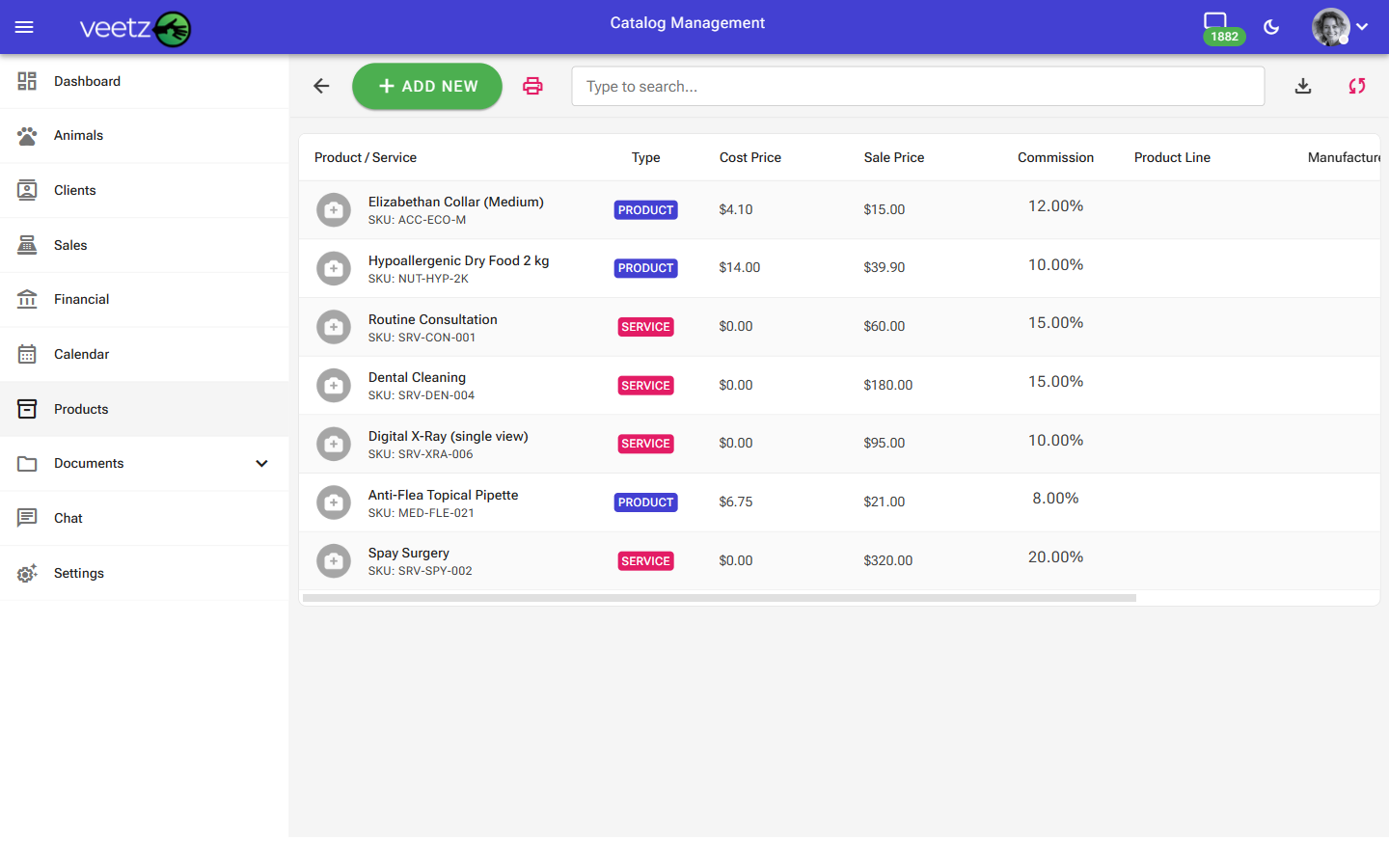 Image: The main screen listing all catalog items.
Understanding the Catalog Item Fields
When you add or edit an item, you'll see a detailed form. Let's break down each section.
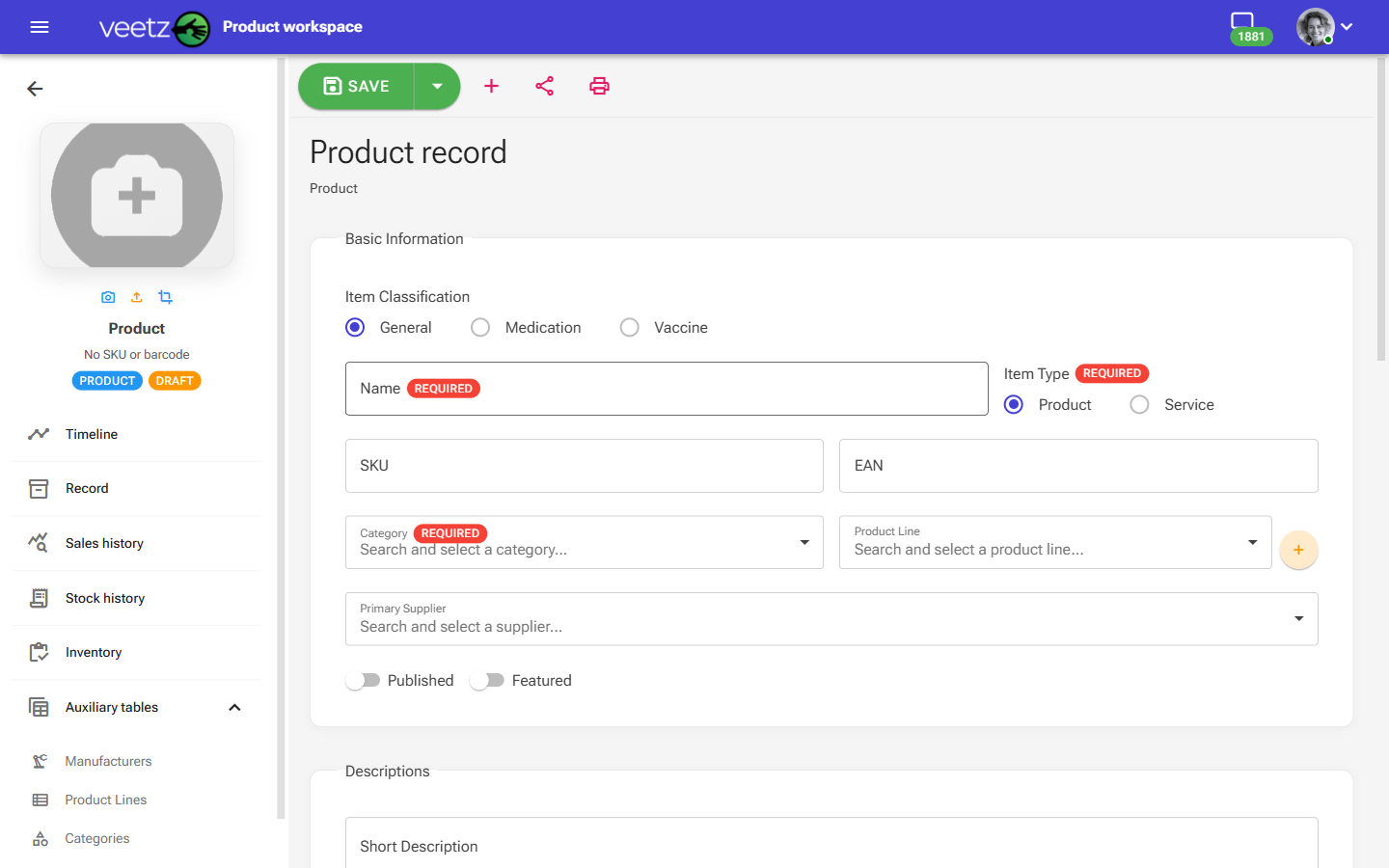 Image: The form for adding or editing catalog item details.
Basic Information
This section covers the fundamental identity of the item.
Veetz will not save an item until Name, Item Type, Category, Cost Price, Sale Price and Currency are all filled in. If SAVE appears to do nothing, scroll through the form — the missing fields are marked in red.
Category deserves special attention: it is chosen from a list you build yourself under Auxiliary tables → Categories. If that list is empty, the dropdown opens with nothing to pick and the item cannot be saved. Create at least one category before your first item.
To ensure data integrity and prevent errors in billing and inventory, the Name, SKU, and EAN fields must be unique for each item in your catalog. Veetz will not allow duplicates for these identifiers.
- Classification: This is the most important first step. Selecting a classification determines which specific fields will be available for the item. Choose from:
- General: For non-specialized products and services (e.g., toys, accessories, standard consultations).
- Medication: For any type of pharmaceutical drug that is not a vaccine. This will display fields for active ingredients, dosage, etc.
- Vaccine: Specifically for vaccines. This will show fields related to immunization.
- Name: Required. The official name of the product or service as it should appear on invoices and records (e.g., "Feline Leukemia Vaccine," "Standard Consultation").
- Item Type: Required. This is a crucial choice, and it is a pair of buttons rather than a dropdown.
- Product: A physical item that you sell and may track in inventory (e.g., medication, pet food, toys).
- Service: A procedure or action you perform (e.g., "Veterinary Check-up," "Digital X-Ray Service").
- SKU (Stock Keeping Unit): An internal code you create to uniquely identify the item. It's great for quick searches and inventory management (e.g.,
VACC-CAT-001). - EAN (European Article Number): The barcode number of the product. If the item has a commercial barcode, you can enter it here for easy scanning.
- Category: Required. Grouping items into categories (like "Vaccines," "Medications," "Surgical Supplies") helps with organization and reporting. Categories come from Auxiliary tables → Categories, so build that list first.
- Product Line: An optional second level of grouping, useful when a single category covers several ranges from different brands.
- Tags: Free-form keywords that make an item easier to find later, when neither the name nor the category is what comes to mind.
Supplier and Visibility
- Primary Supplier: Select the main supplier you purchase this item from. This links the item to your supplier list, making reordering much easier.
- Published: A simple toggle to make the item active and available for selection in consultations and sales. Unpublish items you no longer offer.
- Featured: Mark this item as "Featured" if it's a common or important product/service you want to highlight.
Descriptions
- Short Description: A brief, one-line summary. This is often used in condensed views or quick lookups.
- Description: A more detailed explanation of the item. For a vaccine, you could include what it protects against; for a service, you could detail what the procedure includes.
Financial Details
- Cost Price: Required. What you pay to acquire the product. For a service, where there is no acquisition cost, enter zero rather than leaving it blank.
- Sale Price: Required. The price you charge the client.
- Currency: Required. The currency both prices are expressed in.
- Commission Percentage: If a staff member earns a commission for selling this item, enter the percentage here.
- Max Discount Percentage: Set a limit on the maximum discount that can be applied to this item to maintain profitability.
Stock and Shipping
- Manage stock for this item: Turn this on for physical products you want to count. Services stay off.
- Weight, Length, Width, Height and Unit of Measure: Physical dimensions, used when shipping or storage matters.
- Shipping Class: Groups items that travel under the same conditions.
Specialized Details (Medication & Vaccine)
Based on the Classification you choose, specific fields will be available to capture critical clinical information. This is where Veetz shines for vet practices.
- Active Ingredients: The active pharmacological components of a medication.
- Dosage: The recommended dosage (e.g., "10mg/ml").
- Target Species: The animal species for which the product is intended (e.g., "Cats," "Dogs").
- Requires Prescription: Check this box if the item is a prescription-only medication.
- Indications: The conditions or diseases the product is intended to treat or prevent.
- Protected Against: For vaccines, list the specific diseases it provides immunity against.
- Side Effects: Note any potential side effects for quick reference.
- Storage Instructions: How to properly store the item (e.g., "Refrigerate after opening").
Saving Your Work
Click the green SAVE button in the top toolbar. The small arrow beside it opens additional saving options, useful when you are adding several items in a row.
Next Steps
Now that you have your products and services set up, a great next step is to manage your suppliers. See our tutorial: Managing Your Suppliers.
If you encounter any difficulties during this process, do not hesitate to contact our support.